Minecraft Java Edition
Play supported Minecraft Java Edition versions without needing to sit at your computer. You can explore worlds, build houses, mine resources, and enjoy the familiar gameplay on your phone.
With PojavLauncher iOS, you can play supported Java Edition versions right on your device.
See Direct Install Options
The easiest way to get PojavLauncher on your iPhone is through Direct Install. You won't need a computer or a separate IPA signing app.
First, install the AppleJr DNS profile using the button below. After that, choose any of the four Direct Install options to download PojavLauncher through Safari.
 Required for Direct Install
AppleJr DNS
Install This First
If one option doesn't work, try another. Each uses a different signing certificate, and some may become unavailable.
See the Step-by-Step Install Guide
 Download IPA108.2 MB · Requires JIT
PojavLauncher is an open-source launcher that lets you play Minecraft Java Edition on your iPhone or iPad.
If you've played Minecraft on your phone before, you've probably used Bedrock Edition from the App Store. PojavLauncher is different because it lets you run compatible versions of Java Edition, the version normally played on computers.
You can sign in with your Microsoft account, choose a Minecraft version, and start a world. Since you're playing on a phone, there are touch controls for moving around, mining, jumping, and opening your inventory.
The original PojavLauncher iOS project has been discontinued, but a separately distributed build is available through the Direct Install buttons on this page. You can also download the archived IPA if you prefer installing the launcher manually.
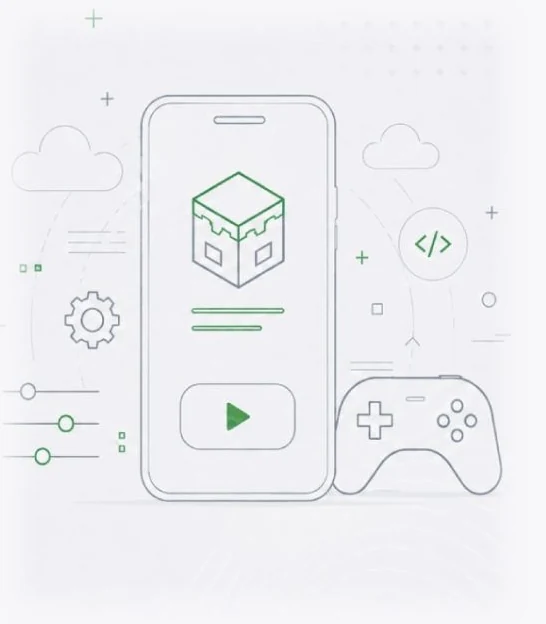
PojavLauncher brings Minecraft Java Edition to mobile, with controls and settings that make it easier to play on an iPhone or iPad.
Play supported Minecraft Java Edition versions without needing to sit at your computer. You can explore worlds, build houses, mine resources, and enjoy the familiar gameplay on your phone.
The AppleJr build available through Direct Install lets you launch supported Minecraft versions without manually enabling JIT each time. Install the app through Safari, sign in, and select a compatible game version.
PojavLauncher comes with touch controls for moving, jumping, mining, and using your inventory. You can also change the button layout to make playing more comfortable.
If you prefer playing with a controller, PojavLauncher includes gamepad settings for compatible controllers. You can adjust the layout to suit the way you play.
Want to play an older Minecraft version? You can select different supported releases and create separate profiles for them. Minecraft 1.12.2 Vanilla is a good starting point for the AppleJr build.
Sign in with the Microsoft account you use for Minecraft Java Edition. You'll need an account that owns the game to access the full version.
You can install PojavLauncher directly through Safari. Follow these seven steps, and use the screenshots to see exactly what to tap.
Open this website in Safari on your iPhone or iPad. Scroll to the Direct Install section and tap AppleJr DNS.
Safari will ask for permission to download the configuration profile. Tap Allow, then open your iPhone Settings.

In Settings, go to General → VPN & Device Management.
Look for AppleJr Anti-Revoke DNS under Downloaded Profile and tap it.
If you see a Profile Downloaded option on the main Settings screen, you can open it from there instead.

You'll see the AppleJr DNS profile details. Tap More Details to review the configuration.
If you trust the profile, tap Install in the top-right corner and follow the instructions on your screen.
Once it's installed, return to Safari.

Go back to the Direct Install section and tap one of the green installation buttons.
When your iPhone asks whether you want to install PojavLauncher, tap Install.
Now return to your Home Screen. You'll see the app icon appear as PojavLauncher installs.
If the installation fails, try a different Direct Install button.

When you first open PojavLauncher, your iPhone might show an Untrusted Developer message.
Go to Settings → General → VPN & Device Management and find the organization listed under Enterprise App.
Review the developer information. If you trust the signer, follow the instructions to trust the app.
The developer name may be different depending on the installation option you selected.

Open PojavLauncher from your Home Screen.
Tap Add Account, choose Microsoft Account, and sign in with the account that owns Minecraft Java Edition.
Once you've signed in, return to the launcher.

Before starting the game, open the version selector or edit your profile.
For your first launch, try Minecraft 1.12.2 Vanilla. It's a good version to start with before trying newer releases.
Select the version, save your profile, and tap Play.

Yes, PojavLauncher is free and open source. However, you'll need to own Minecraft Java Edition on your Microsoft account to play the full game.
No. The Minecraft app available on the App Store is Bedrock Edition. PojavLauncher runs Java Edition, which requires its own game license.
Not every device will run it equally well. Older iPhones may struggle with newer Minecraft versions, so it's best to start with a lighter version and see how it performs.
Try launching Minecraft 1.12.2 Vanilla without mods and lower the graphics settings. If you're using the archived PojavLauncher IPA, make sure its additional runtime requirements are set up correctly.